
Clear boundaries.
Device sanity.
Only approved sites open.
The middle ground between wide-open devices and pen and paper.
ScreenED is a website allowlist for school Chromebooks: students open only the sites their teachers approve, and IT runs it from the Google Admin console they already use. Nothing to filter out, because nothing gets in unless it's approved.
Built for school-managed Google Chromebooks signed in with a school Google Workspace for Education account. Not for personal devices or phones. Works as described when ScreenED and your school's Google settings are set up correctly and running; no filter is a guarantee.
Illustration. The real teacher tool looks different.
Fewer rabbit holes. More lesson time.
Teachers decide for their class
Approve one page, one video or a whole site in a couple of clicks. Students can open it within seconds, and can't go anywhere else.
Videos without distractions
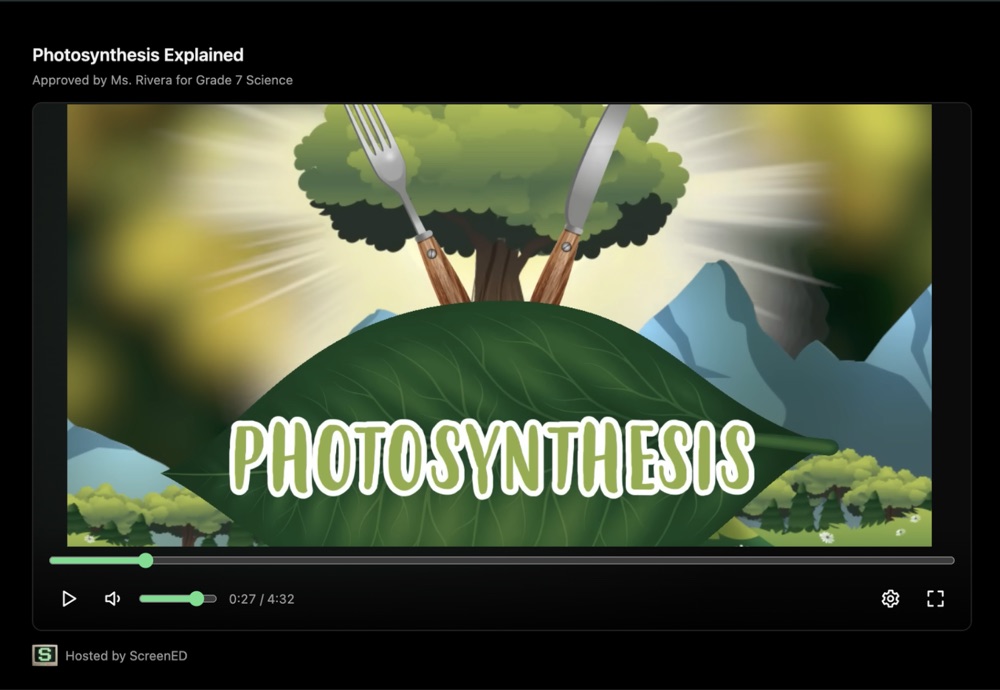
An approved video plays on its own: no suggestions, no comments, no search bar. When it ends, it ends.
Safe research
Students search the trusted education sites your school has approved, not forums, blogs and unverified pages. Searching inside those sites is in development.
A guest list, not a security guard.
Most school filters try to recognise bad websites and block them. Anything they haven't seen yet gets through. ScreenED turns that around.
Try to spot what's bad
- Always a step behind. New sites and proxies appear faster than lists update.
- Allowed sites are full of side doors, like one video leading to the next.
- Teachers file tickets and wait, or IT hand-edits long lists.
Only opens what's approved
- New sites and proxies don't matter. They were never on the list.
- Approve one video or one page, not a whole site of surprises.
- Teachers approve for their own class. IT and school admin approve school-wide sites.
Simple steps, quicker access.
A teacher approves
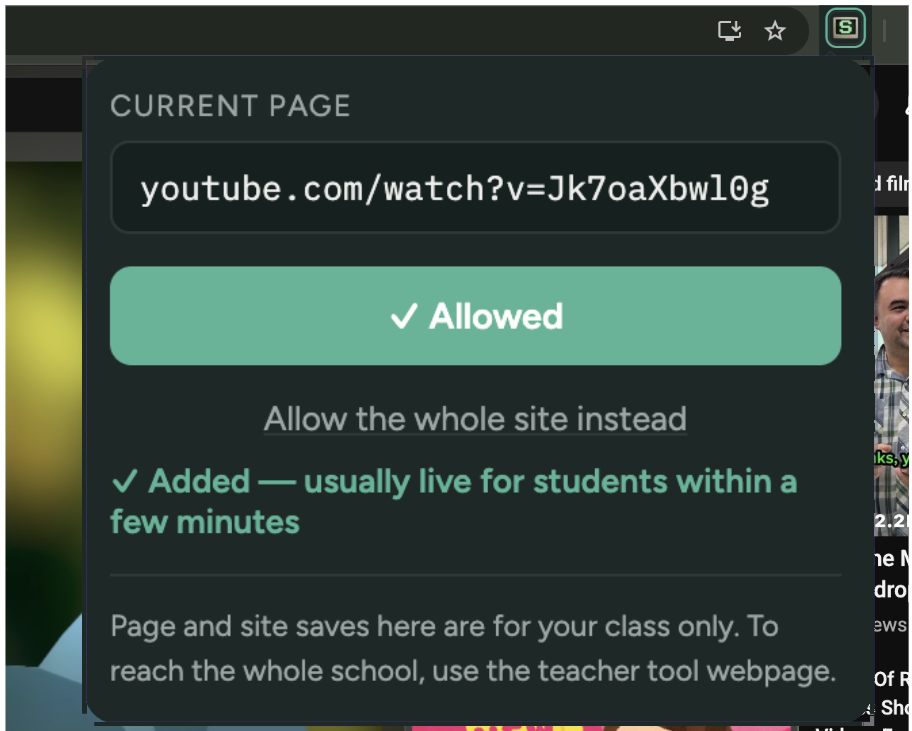
A couple of clicks from the page they're on, or paste a whole lesson's links at once, and students are where you want them to be.
The Chromebook enforces it
Google's own device controls lock the browser down. The ScreenED add-on handles the fine detail, like single videos. The rules live on the Chromebook, so they hold even offline.
Blocked? Ask for access
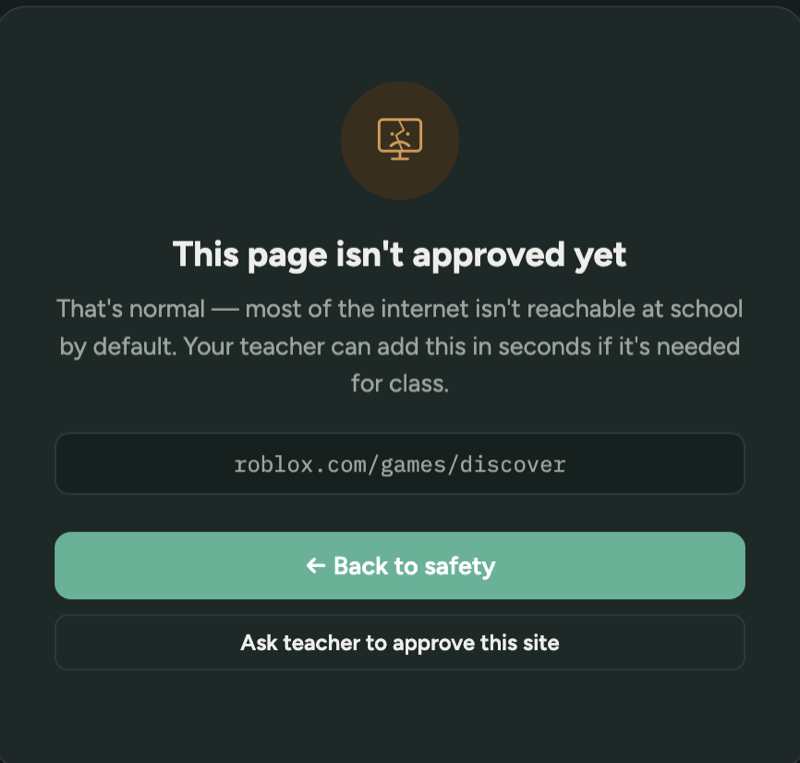
A blocked page is calm and plain, with an "Ask teacher" button. The teacher answers in a click or two, and the page opens for the student within seconds.
Focus for teachers. Control for IT. Peace of mind for families.
For teachers
- Approve a page, a site, or a batch of links for your class or grade.
- Pre-loaded with trusted education sources, so you aren't starting from zero.
- Show a page as text only or photos only, and hide its comment sections and forms.
- Student requests arrive with the exact page they asked for, ready to open, approve or decline.
For IT
- Set up in the Google Admin console you already use. No new hardware.
- IT approves school-wide changes alongside school admin. Every approval shows who added it and when.
- Import your roster from a spreadsheet, and start each year with a review of who moved up.
- See every Chromebook's last check-in at a glance, and pause ScreenED school-wide if you ever need to.
For principals and school leaders
- See what's approved across every grade and class.
- Approve or decline school-wide requests alongside IT.
- Start from a vetted list of education sites, reviewed before anything reaches students.
For families
- The rules follow the Chromebook everywhere, keeping your child where they need to be.
- Adult, gambling and similar sites stay locked for every student, whatever anyone approves.
- Your school stays in charge of student data, and ScreenED keeps no browsing history, so there's none to leak.
Reserve a free pilot spot.
ScreenED is in final testing on real Chromebooks, and no school runs it yet. The first pilot schools help shape what it becomes. A pilot runs ScreenED with one grade level for an agreed term, at least one quarter, with us alongside the whole way. You help test it and make sure it works for your school, and pilot schools get an exclusive founding-school deal.
- Free for the pilot group
- Other grades stay exactly as they are
- No pressure: no commitment to buy
Frequently asked questions.
What are the school requirements?
School Google accounts for students and teachers, Chromebooks managed in the Google Admin console with the Chrome Education Upgrade licence (included with most education Chromebooks), and one person with admin rights to set it up. We give you a checklist and walk through it together.
Does IT have to install anything on each Chromebook?
No. IT adds the ScreenED add-on once in the Google Admin console for the whole student group, and every Chromebook picks it up automatically. Students can't remove it.
What does setup look like?
Four steps, about an hour of IT time: turn on ScreenED in the Google Admin console, sign in and add your teachers and classes, check the starting list of sites, then test on one Chromebook before switching it on for everyone. Schools that say yes get a step-by-step guide, and we walk through it together on a call.
Can students get around it?
Not in any way we know of. Every way around it we know of is closed and tested before each release. Students can't remove the add-on, and the school's Google settings switch off the usual side doors (incognito, guest mode, developer tools). Because only approved sites open, proxy and VPN sites don't load either. If a pilot finds a new gap, we close it and add it to our tests. ScreenED covers school-managed Chromebooks only; no school tool controls a student's own phone or home computer.
What doesn't ScreenED do?
ScreenED controls which websites a school Chromebook can open. It doesn't watch screens, monitor chats or messages, or cover personal phones and home computers.
Will teachers drown in approval requests?
That's the problem we designed hardest against. A school starts with a list of trusted education sites, teachers can paste a whole lesson's links at once, and a student's request takes a click or two to answer.
What happens if ScreenED has an outage?
The rules live on each Chromebook, so approved stays approved and blocked stays blocked. Only new changes wait until we're back.
What will it cost after the pilot?
The pilot is free. After that, ScreenED is priced per student per year to fit a school's own budget, without paying for monitoring suites and extras you didn't ask for. We agree pricing with each pilot school before its pilot ends, so there are no surprises. Pilot schools get a discount on their first year.
What about student privacy?
The school stays in charge of its students' data and ScreenED acts on the school's instructions, under a signed data agreement. We don't read pages or keep a browsing log, and each school's data is kept separate from every other school's.
Let's look at it together.
ScreenED is built by a parent of four and former teacher who taught in the US and in international schools across Southeast Asia. Reach out for a video walkthrough of ScreenED and a straight answer on whether it fits your school.
Or email us: